Your Profile & Learning Analytics
The My Profile is your personalized hub in watsonx Workshop that lets you tailor your experience and analyze your usage of the platform. Navigate to your email on the top right and click on My Profile to customize your language, visual theme, and sync your Workshop hours to Your Learning (YL) to earn Think 40 credits. Explore the My Activity page to see your progress visualized through sessions, messages, weekly trends, and YL hours across every activity type. Every interaction, from generated podcasts and presentations to Client Role Play, Practice Gym, and even onboarding, is translated into meaningful learning credit.
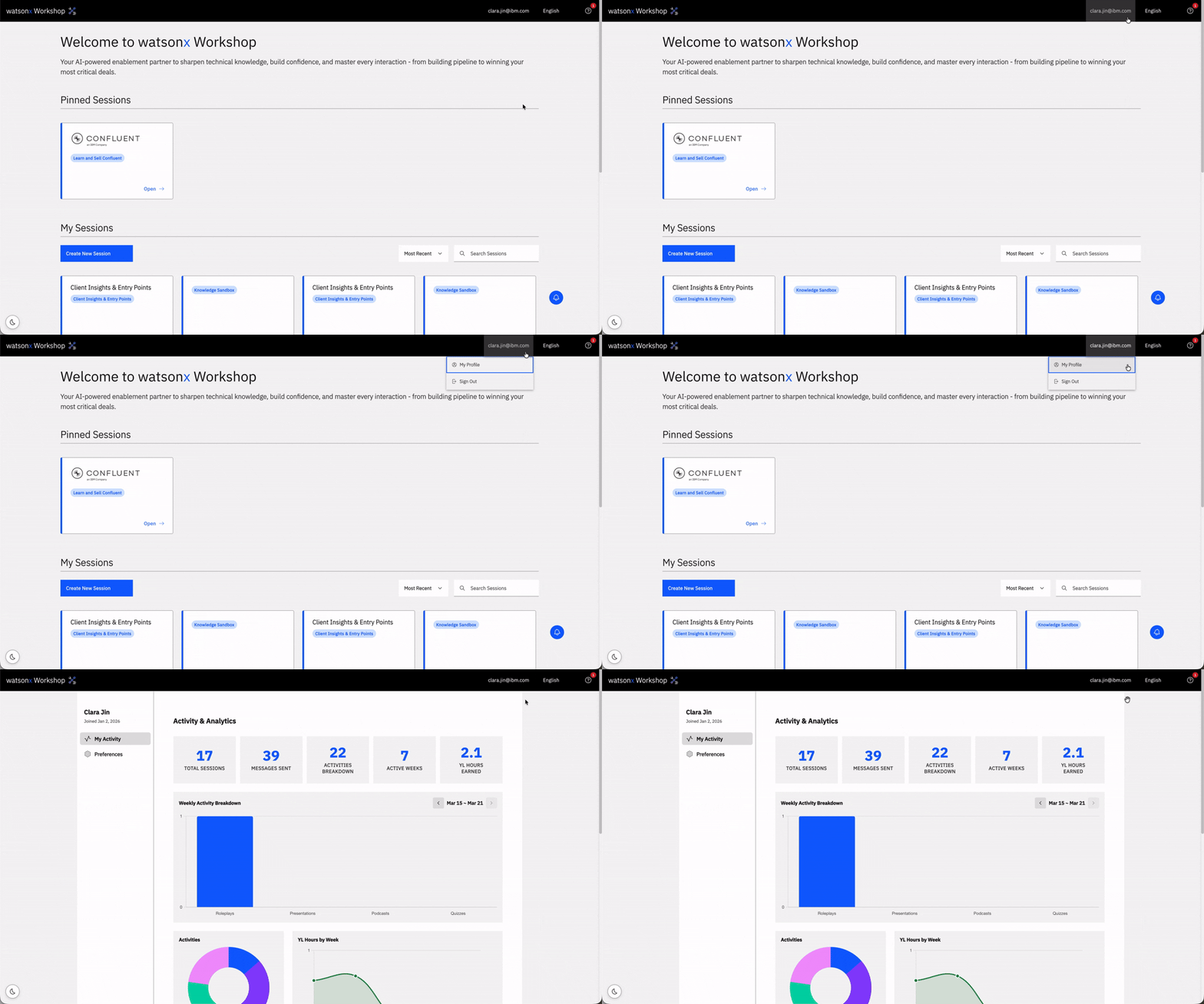
My Activity
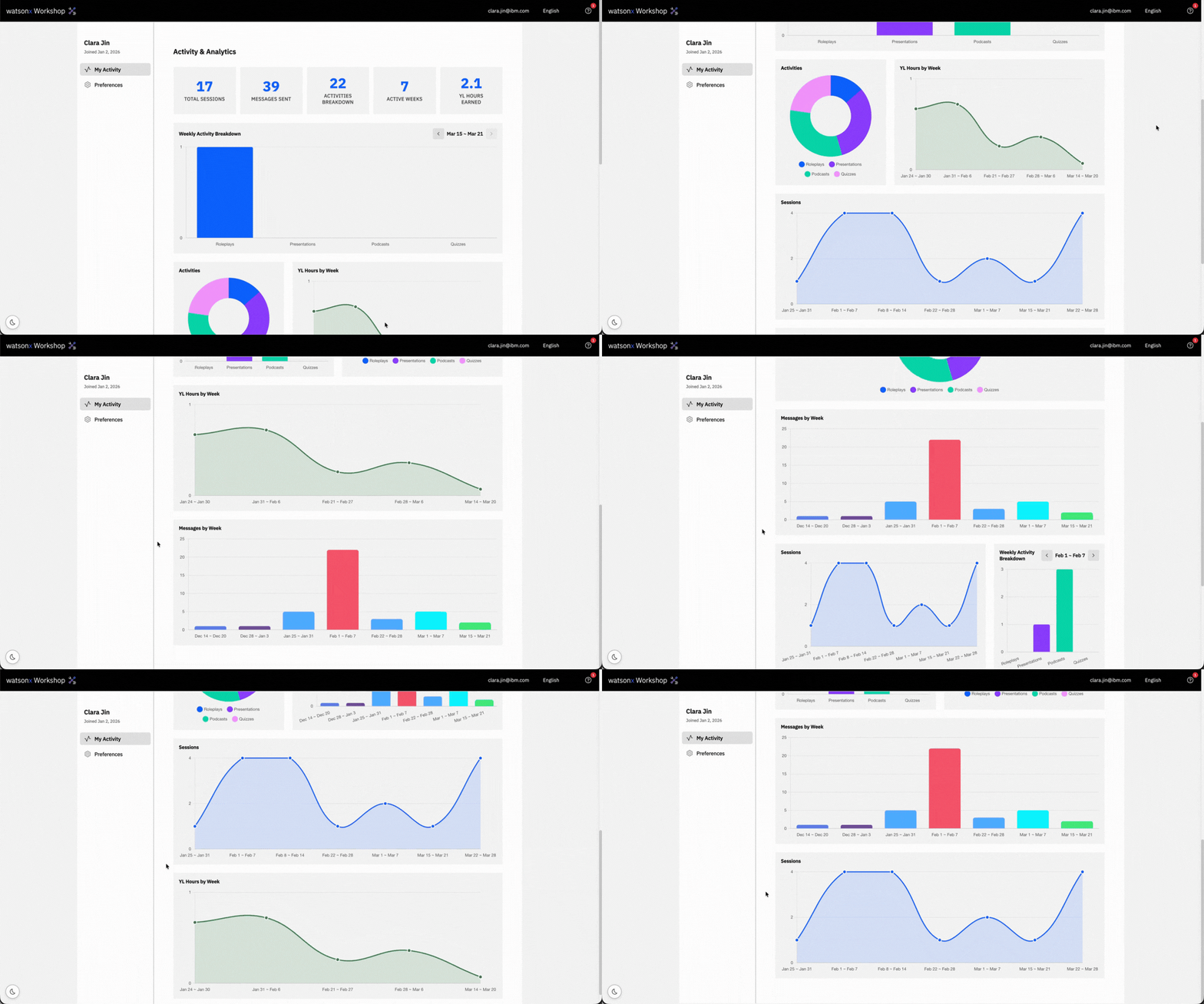
Navigate to the My Activity page to see a detailed, visual breakdown of how you’re using watsonx Workshop. This page gives you a clear snapshot of your learning journey through visual charts and activity summaries designed to help you understand your engagement over time.
Key Learning Metrics at a Glance
Track your essential statistics, including:
- Total Sessions: How many sessions you’ve created since you joined.
- Messages Sent: Total message sent across all sessions.
- Activities Breakdown: The total Studio tools used in all your sessions.
- Active Weeks: How many weeks you’ve been active on watsonx Workshop.
- Your Learning Hours Earned: Your watsonx Workshop usage translated into total Your Learning hours that counts toward Think 40.
Weekly Learning Insights
Dive deeper with weekly visual analytics of:
- Activity Breakdown: A bar graph and pie chart that breaks down your activity through Studio tools across all sessions.
- YL Hours by Week: Your watsonx Workshop usage broken down by active weeks within the platform – translated into YL hours.
- Sessions by Week: Number of sessions created across all active weeks on watsonx Workshop.
- Messages by Week: A bar graph that breaks down messages sent on the platform across all active weeks.
How Your Learning Time is Calculated
Your YL hours are carefully measured to reflect real engagements across the various activity types offered within watsonx Workshop. Your YL hours are automatically updated every Saturday at 2:00 AM EST to reflect your usage of Workshop and will show at the top of your Learning completions on YL. Here’s how each component contributes to your Learning hours in Think 40:
- General Message Activity in the Chat: You earn 5 minutes of credit for every active 5-minute window in which at least one message was sent. Time is not based on the number of messages sent, solely awarded to the active period.
- Interactive Podcast: Time is accredited by listening to the generated podcast, matched to its full audio length.
- Presentation: Like Podcast accreditation, the time is earned by watching the video of the generated presentation and matched to its full video duration.
- Client Role Play: Your credit includes the duration of the logged call, and an additional 3 minutes of preparation time per session.
- Practice Gym: The time awarded is based on the recorded quiz duration, plus an additional 20% reading time adjustment to account for review and comprehension.
- Onboarding: A one-time, 10-minute credit is automatically accredited when you first view the Introduction Video and the Interactive Tutorial, ensuring your onboarding time is recognized.
Viewing Your Hours on Your Learning
To view your watsonx Workshop learning activity in Your Learning, go to Your Learning and click on your profile. Select Think 40, then scroll to the Learning completions section under Learning hours. There, you’ll find a learning activity titled watsonx Workshop and click on it to display your total accumulated hours based on your time spent in Workshop. Click Go to activity to take you directly to watsonx Workshop for a seamless transition back into your learning experience.

Preferences
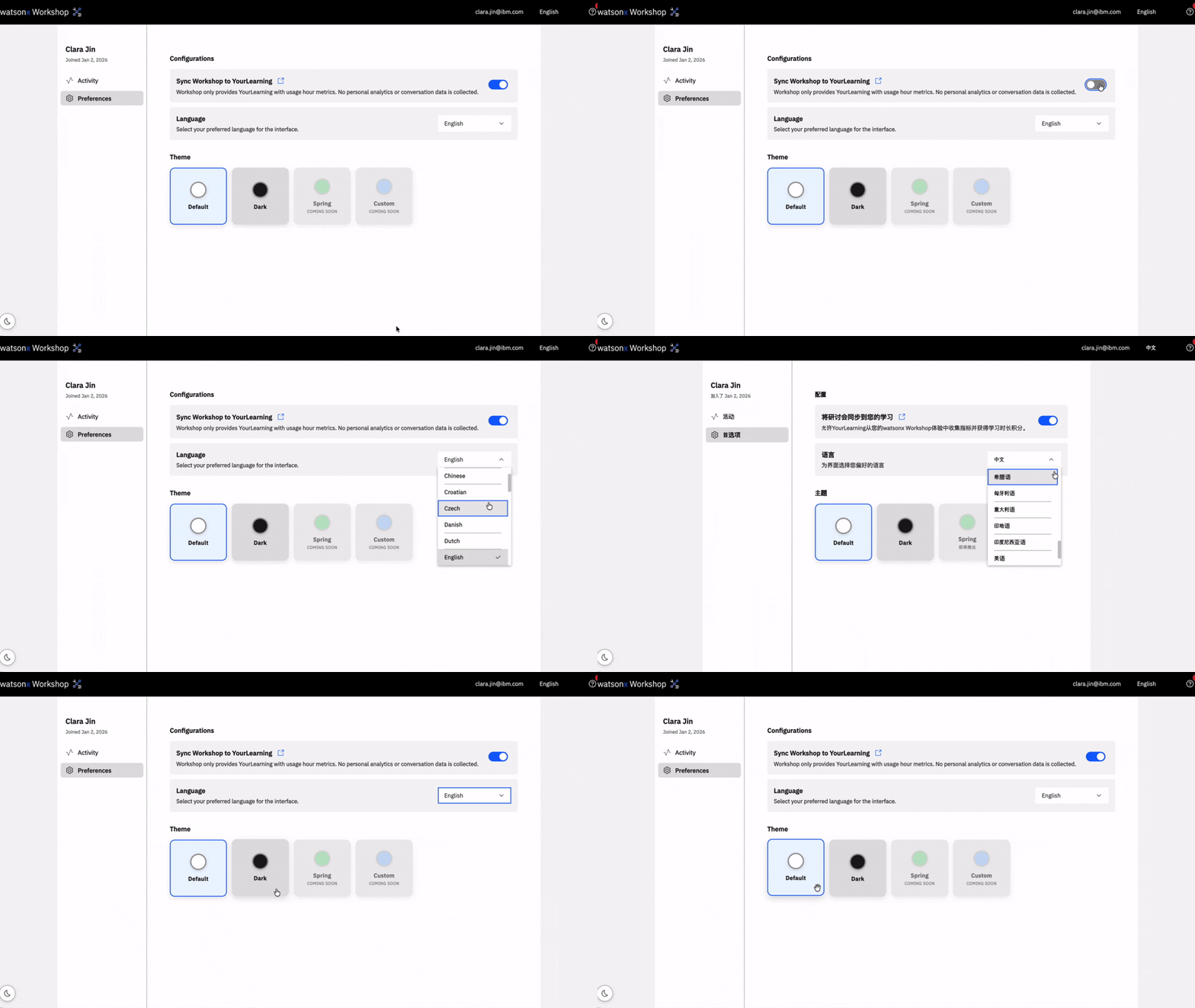
The Preferences page allows you to customize how watsonx Workshop looks, feels, and connects to your broader learning journey.
Configurations
- Sync Workshop to Your Learning: Your activity on watsonx Workshop automatically sync with Your Learning. If you prefer not to earn credit for your Workshop activity, simply toggle it off.
- Language: Set your preferred language to make navigating and learning in Workshop feel natural and intuitive.
Theme
Personalize the visual style of watsonx Workshop with theme options designed for comfort and clarity.